
Calculation Operators in Formulas
Checking and Changing Formulas
Copying Formulas Using the Fill Handle
Copying Formulas using Copy and Paste
Relative vs. Absolute Cell References

Formula: an equation that performs operations on worksheet data.
Operations: mathematical operations such as addition, multiplication, division or subtraction.
Operators: specify the type of calculation that you want to perform on the elements of a formula. (add +, subtract -, multiply *, or divide / , for example)
Arithmetic Operators: To perform basic mathematical operations such as addition, subtraction, or multiplication; combine numbers; and produce numeric results, use the following arithmetic operators.
| Arithmetic operator |
Meaning |
Example |
|---|---|---|
| + (plus sign) | Addition | 3+3 |
| – (minus sign) | Subtraction Negation |
3–1 –1 |
| * (asterisk) | Multiplication | 3*3 |
| / (forward slash) | Division | 3/3 |
| % (percent sign) | Percent | 20% |
| ^ (caret) | Exponentiation | 3^2 (the same as 3*3) |
Comparison Operators: You can compare two values with the following operators. When two values are compared by using these operators, the result is a logical value, either TRUE or FALSE.
| Comparison operator |
Meaning |
Example |
|---|---|---|
| = (equal sign) | Equal to | A1=B1 |
| > (greater than sign) | Greater than | A1>B1 |
| < (less than sign) | Less than | A1<B1 |
| >= (greater than or equal to sign) | Greater than or equal to | A1>=B1 |
| <= (less than or equal to sign) | Less than or equal to | A1<=B1 |
| <> (not equal to sign) | Not equal to | A1<>B1 |
| Reference operator |
Meaning |
Example |
|---|---|---|
| : (colon) | Range operator, which produces one reference to all the cells between two references, including the two references | B5:B15 |
| , (comma) | Union operator, which combines multiple references into one reference | SUM(B5:B15,D5:D15) |
If you want to perform simple calculations such as adding or subtracting the numbers in two different cells see the following example.

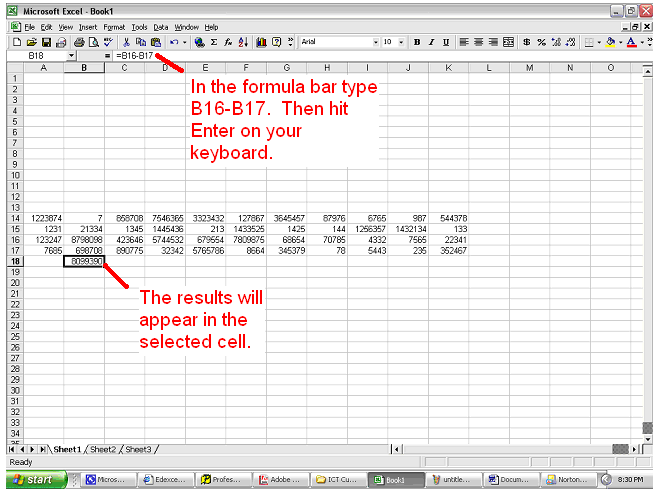
*If you wanted to divide (/), multiply (*), or add (+) you would just use those operators instead of subtract (-).
Checking and Changing Formulas
Copying Formulas Using the Fill Handle
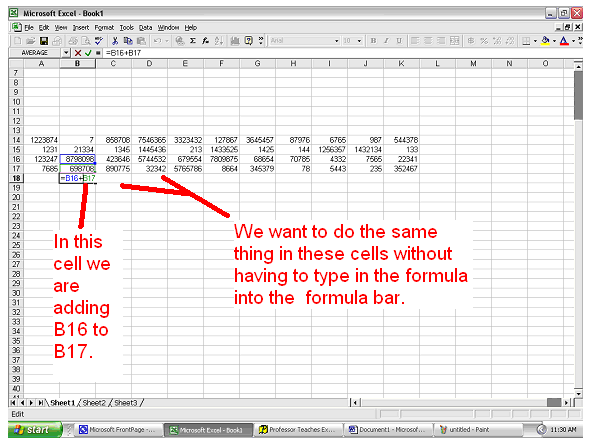
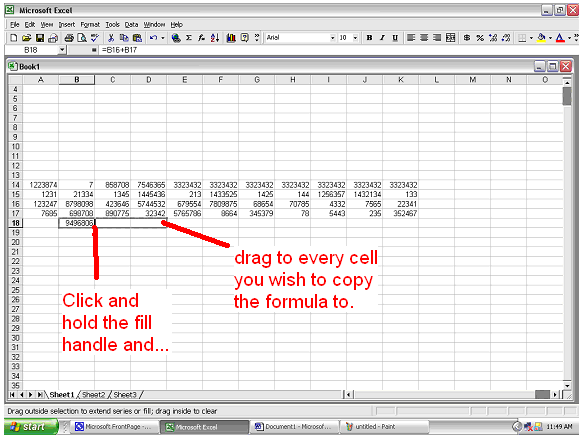
If you want to use the same formula with different cell references in a new cell then follow these instructions.
Copying Formulas using Copy and Paste
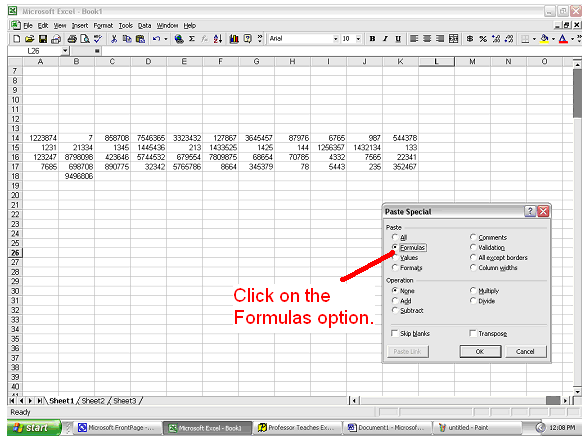
Sometimes you may want to copy formulas
to cells that are not adjacent to each other. For example,
Relative vs. Absolute Cell References
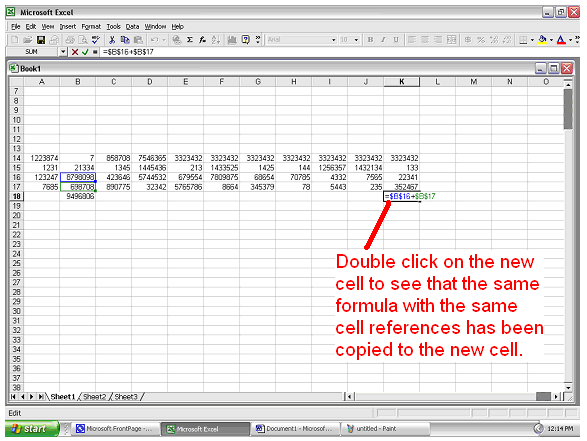
The above examples use examples of relative cell references. The cell references in the formula change depending on which cell the formula is copied to. In other words the cell references or relative to the cell in which the formula is copied.
Sometimes we do not want the cell reference to change in other words we want an Absolute Cell Reference. See the example below for further clarification.
Follow these instructions:
